
Curators
Writing posts
Draft and publish posts for your player.gg profile or publication.
Start a post#
Open your account menu and select Write a post. You can also open the Curator dashboard and select New independent post.
If you contribute to one or more publications, player.gg will ask where you want to post:
- Your profile creates an independent post under your name. It will not be emailed to a publication’s subscribers.
- A publication publishes the post under that publication’s brand and gives you the option to email its subscribers.
Choose before you start writing. A saved post cannot be moved between your profile and a publication later.
Add your story#
Give the post a title, add an optional subheadline, and start writing. Type @ to mention a game, curator, or publication inline. The editor also supports regular formatting as well as reviews, featured games, images, videos, and other rich blocks. See Using the editor for every option.
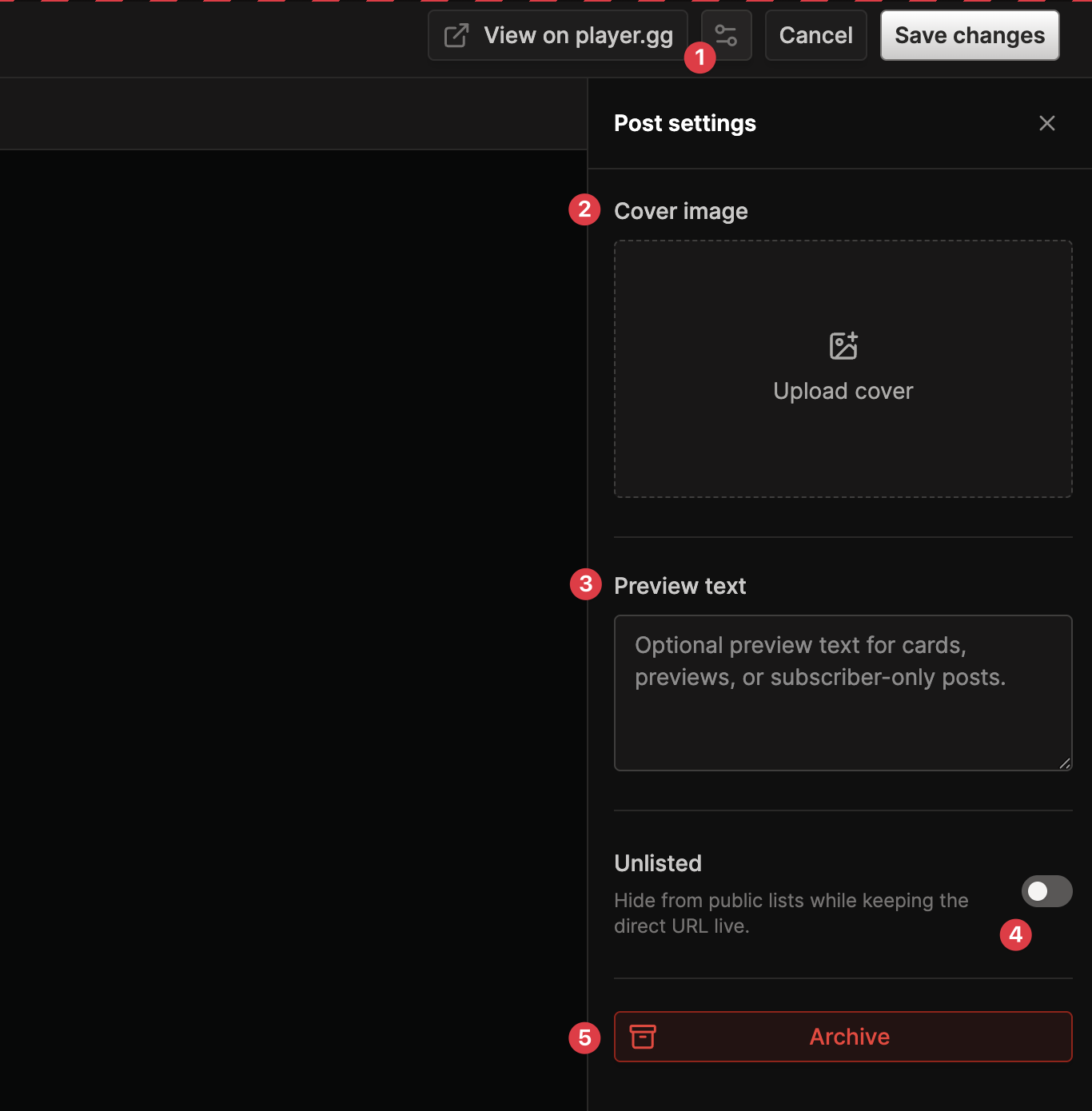
- Open Post settings.
- Add a custom Cover image. For best results, use a 16:9 image at 1600 × 900 pixels or larger.
- Add optional Preview text for cards, previews, and subscriber-only posts.
- Turn on Unlisted to hide the post from public lists while keeping its direct URL live.
- Select Archive to remove a saved post from public view without deleting your work.
Select Save draft when you are ready to save the post to your player.gg account. You can return to it from the Curator dashboard.
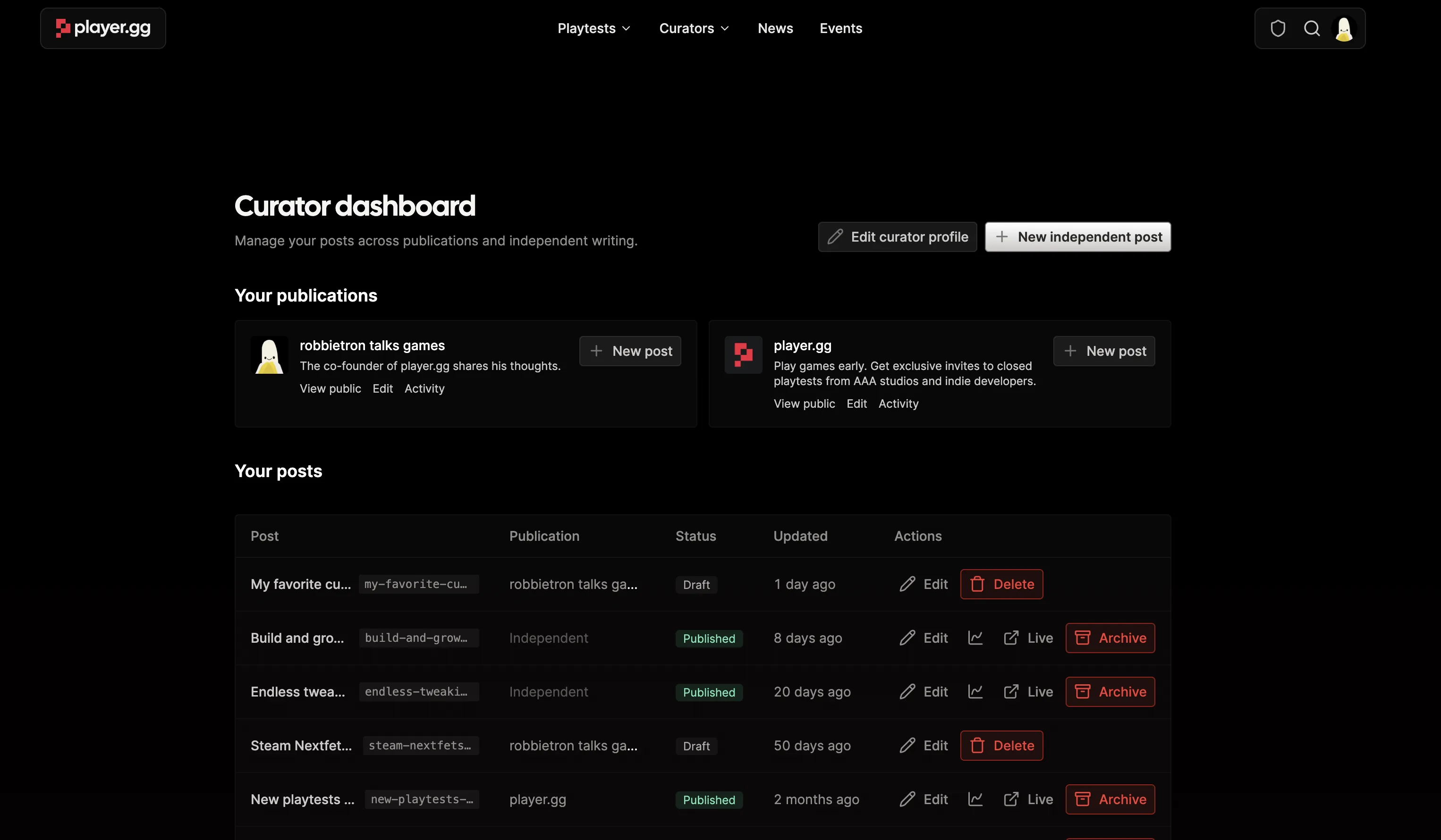
The dashboard keeps independent and publication posts together. It shows where each post belongs, whether it is a draft or published, when it was last updated, and the actions currently available.
Publish and share#
Open the saved draft to review it. For a publication post, you can also preview the newsletter email before it goes out.
Select Publish now to make the post live immediately, or Schedule to choose a future date and time.
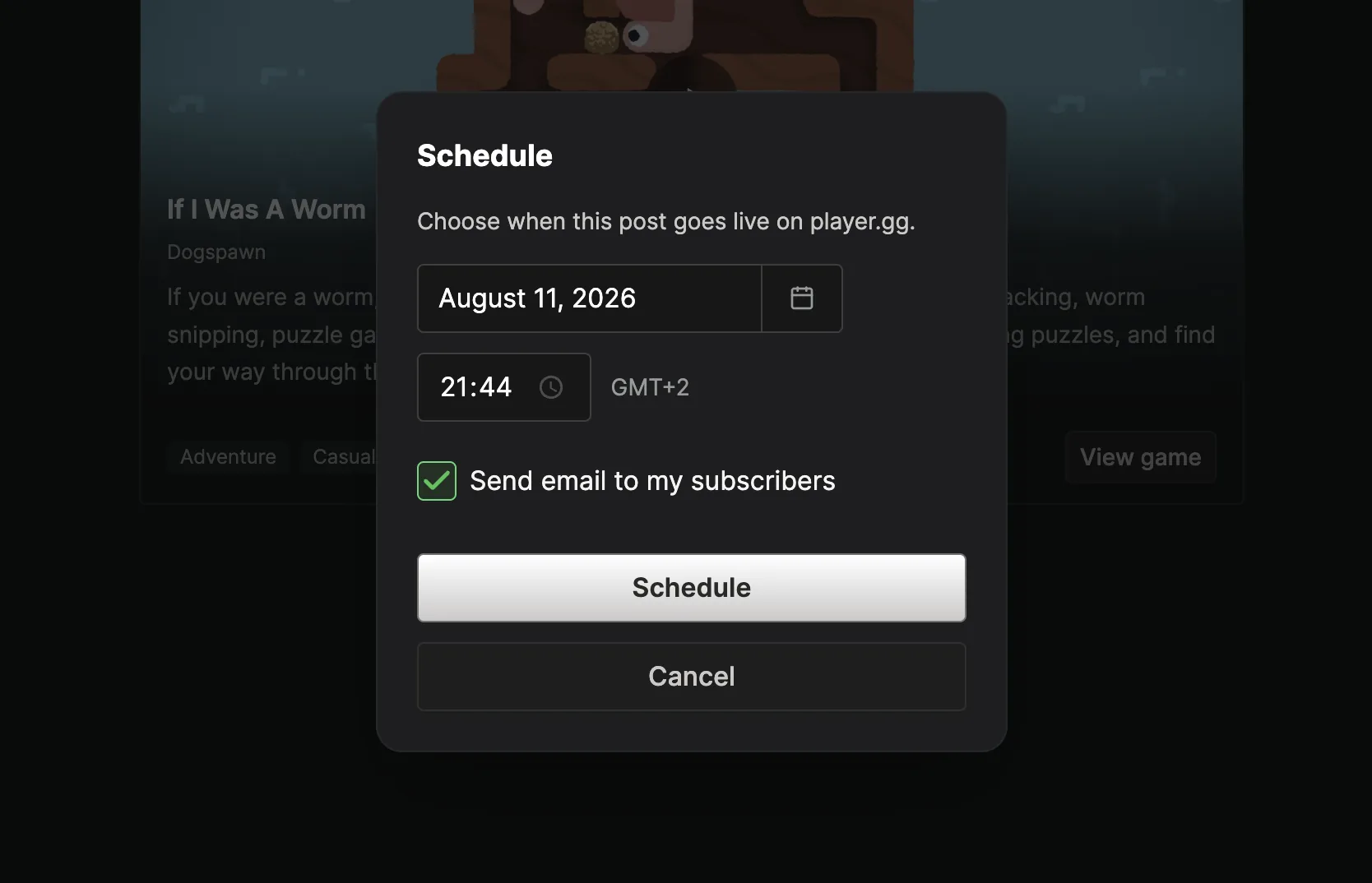
The scheduling dialog shows the timezone used for your chosen time. For a publication post, select Send email to my subscribers to send its newsletter when the post goes live. Leave it unselected if you want to publish on schedule but send the email separately later.
When publishing through a publication, choose what should happen to its newsletter email:
- Send now emails subscribers as the post goes live.
- Schedule sends the email at the time you choose.
- No / later publishes without sending an email. You can return to the post and send or schedule it later.
After publishing, you can view the post on player.gg, edit it, see its analytics, or archive it. Archiving removes it from public view without deleting your work.