
player.gg Account
Collecting games
Organize the games you want to play, are playing, and have played on your profile.
Collect games on your profile#
Once you can claim a public profile, it becomes your personal place to organize and share the games that matter to you.
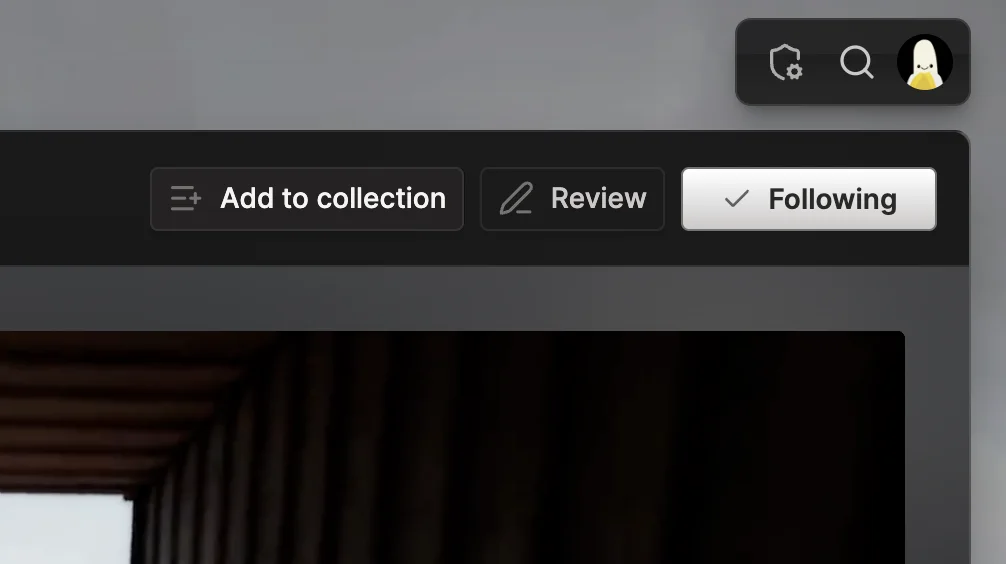
You can save any game directly from its game page. Select Add to collection, then choose one of your existing collections or create a new one.
Start with the essentials:
- Want to play for games on your wishlist or backlog.
- Playing for games you are spending time with now.
- Favorites for the games you most want to recommend.
Create your own collections#
You can also group games around any theme you care about, from cozy games for a quiet weekend to the best co-op games for a regular group.
Collections appear on your profile, where you can keep updating them and share them with other players.
Choose how games count#
Personal collections can contribute to the game totals shown in your curator sidebar. When creating a collection—or later in Collection settings—use Games in this collection count as to choose:
- No status keeps the collection separate from your game totals.
- Want to play adds its games to your Want to play total.
- Playing adds its games to your Playing total.
- Played adds its games to your Played total.
In Add to collection, status collections appear first with their status icon, in this order: Want to play, Playing, Played. Other personal collections and publication collections follow.
Only totals greater than zero appear in the sidebar.
Statuses are available only for collections owned by your personal curator profile. Collections owned by a publication use No status and do not contribute to these totals.
Choose a layout#
Every collection can use the layout that best suits its games:
| Layout | Best for |
|---|---|
| Grid | A compact, wrapping overview of many games. |
| Shelf | Portrait covers that wrap onto multiple rows. |
| Track | Rich game cards in a horizontal row. |
| Reel | A visual carousel led by game trailers. |
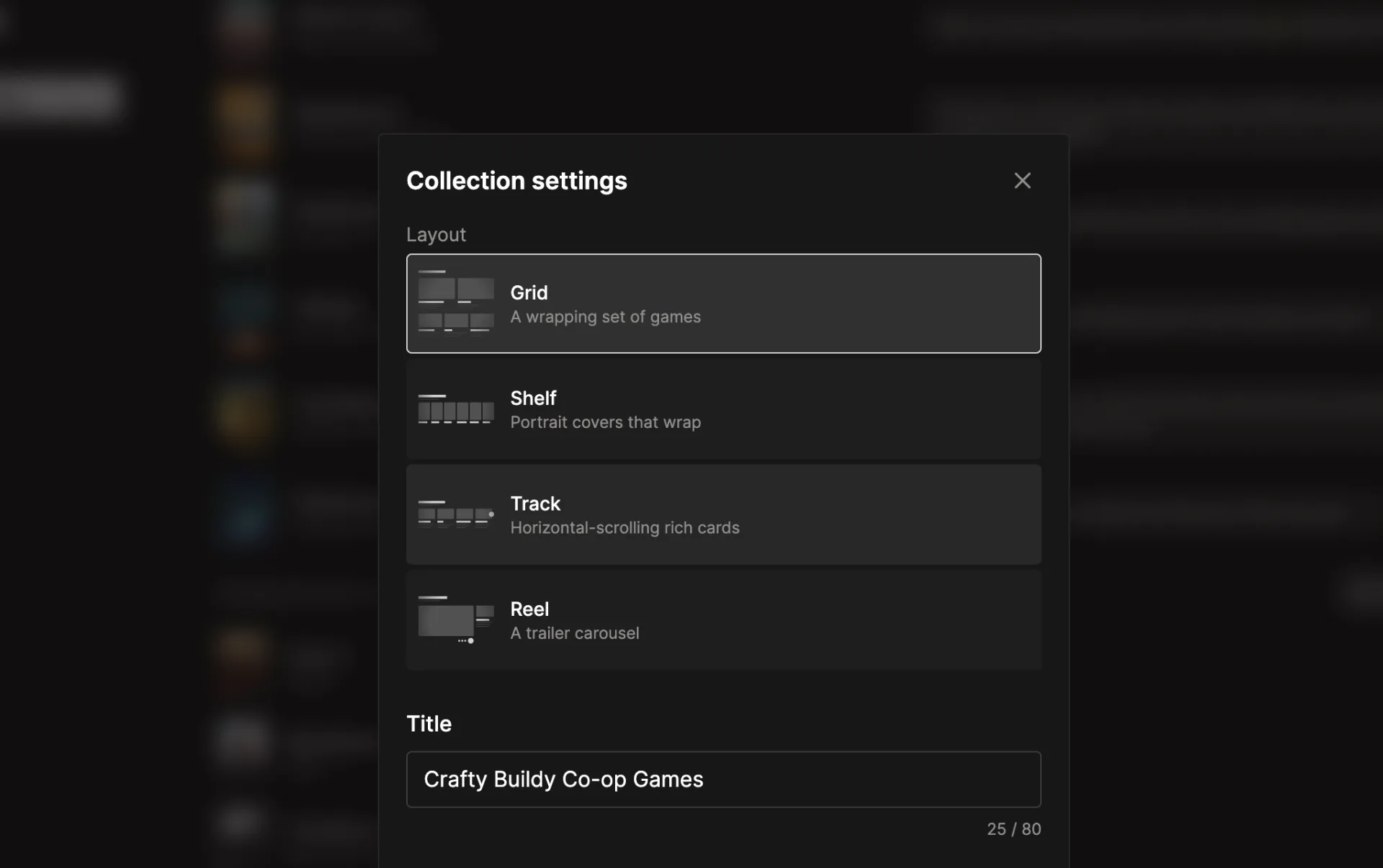
You can change a collection’s layout later without rebuilding it.
Add games with Steam#
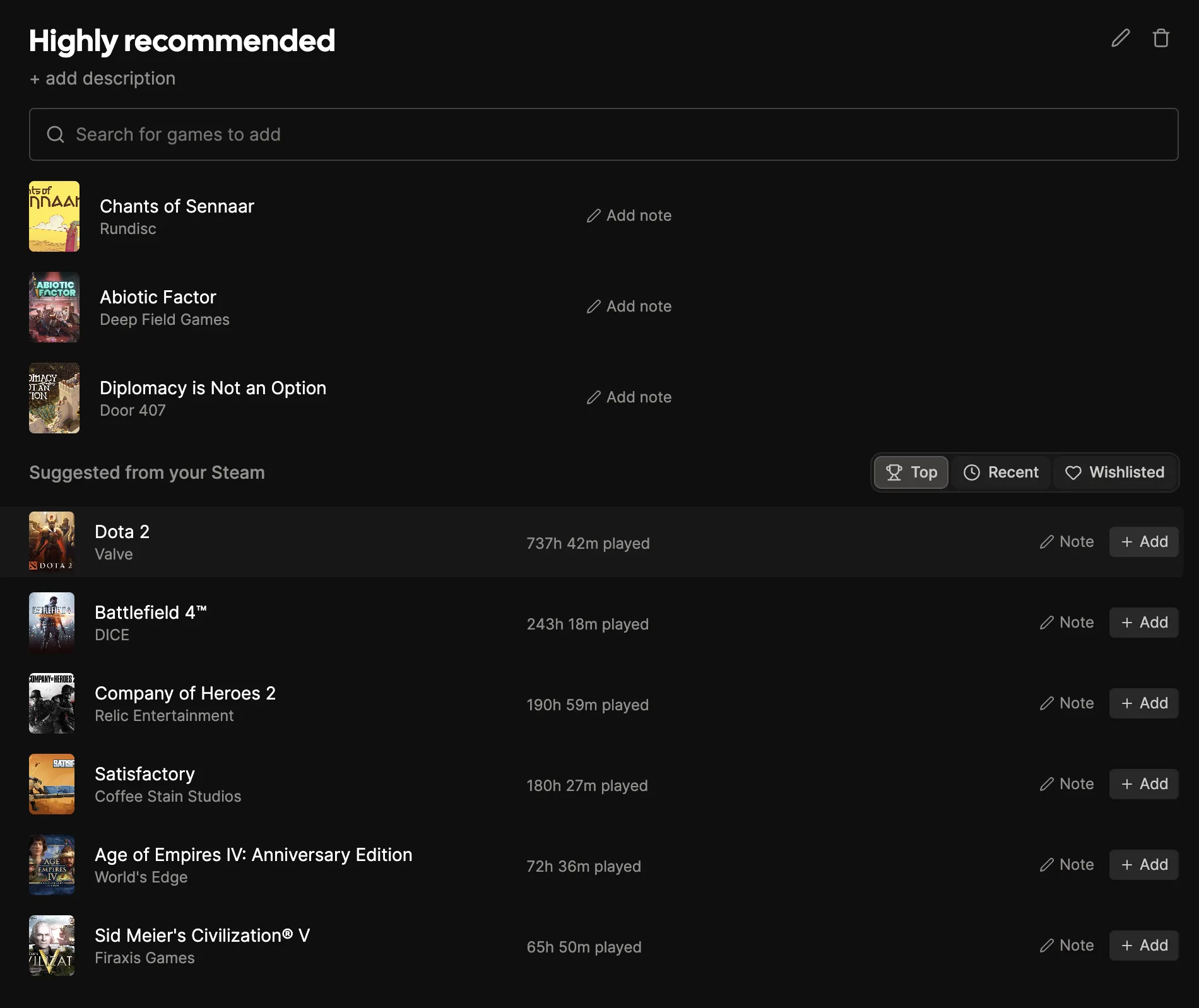
If your Steam account is connected and its game details are public, player.gg can suggest games from your library and wishlist.
- Top surfaces the games you have played most.
- Recent shows games you have played lately.
- Wishlisted suggests games from your Steam wishlist.
Make your Steam profile public#
Steam keeps your overall profile and game details as separate privacy settings. Both need to be public for player.gg to see your library, playtime, and wishlist.
- Open your Steam profile and select Edit Profile.
- Select Privacy Settings.
- Set My Profile to Public.
- Set Game details to Public. Steam saves privacy changes automatically.
You can also open your Steam Profile Privacy Settings directly while signed in. Games you have individually marked as private will remain hidden and will not appear in suggestions.
Add a suggestion immediately, or search for any game manually. You can reorder games after adding them.
Keep a collection in sync with Steam#
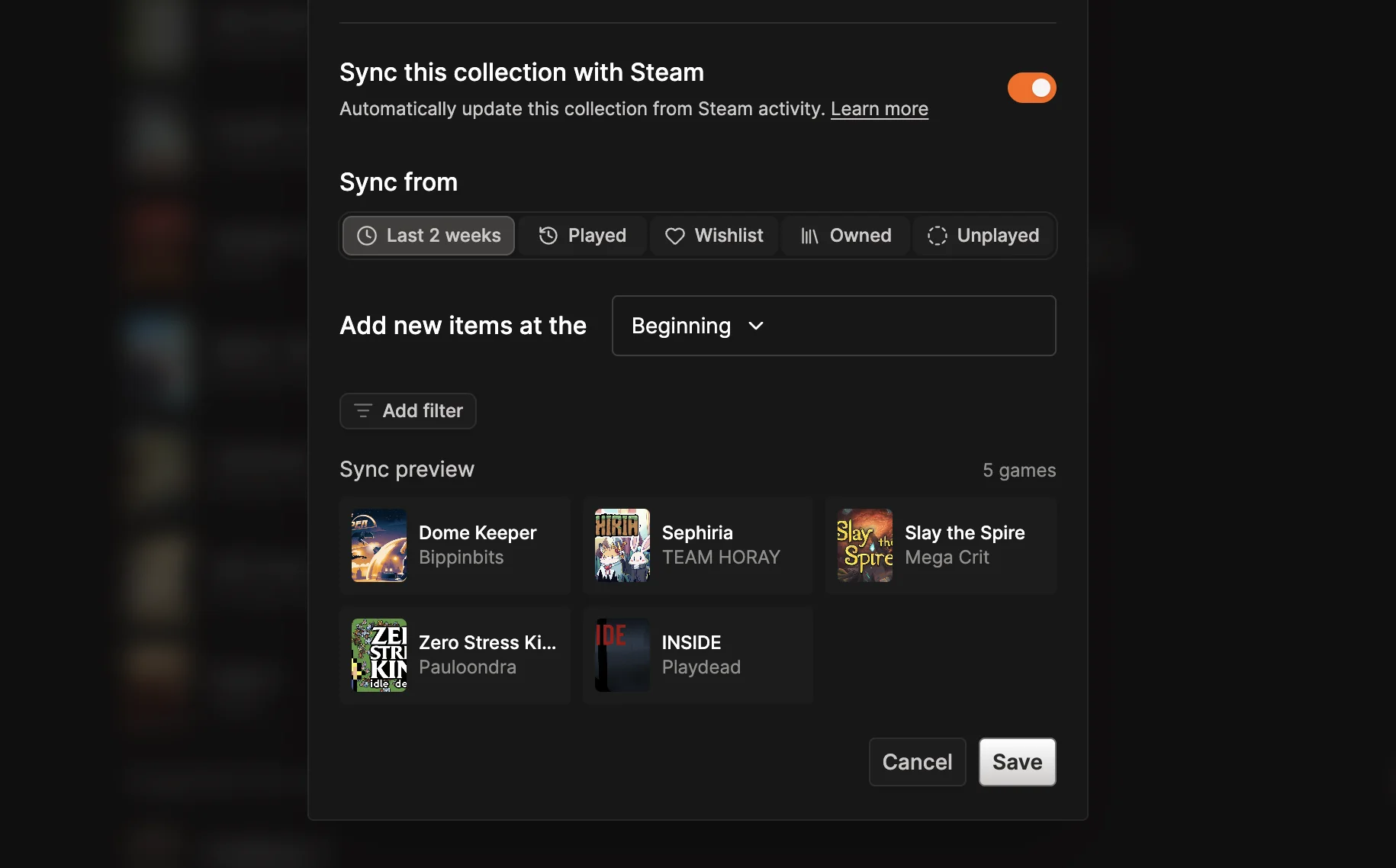
Collection sync automatically adds games from your Steam activity. Open Collection settings, turn on Sync this collection with Steam, then choose a source:
- Last 2 weeks uses games played recently.
- Played uses games played across all time.
- Wishlist uses your Steam wishlist.
- Owned uses every game in your library.
- Unplayed uses library games you have not played yet.
Choose whether new games appear at the beginning or end of the collection. You can also filter the source by genres and Steam tags found in the owner’s library. The sync preview updates to show the games that match the current configuration before you save it.
Steam must be connected to the collection owner’s player.gg account. The owner’s Steam profile and Game details must both be public. If sync cannot read the library, check the Steam status under Account settings, then review the privacy steps above.
Curators can also combine multiple collections into themed Pages and add notes and sources to their picks. Learn more in Curating collections.