
player.gg Account
Comments and replies
Join conversations on posts, format and manage your comments, and control comment emails.
Leave a comment or reply#
Commenting is available to signed-in players with a profile. Claiming a profile currently requires an invite. See Claiming your profile.
Open a published post and scroll to the comments. Select Add a comment, write your message, then select Comment. To respond to someone, select Reply below their comment. Comments can contain up to 2,000 characters.
Type @ and start typing to mention a game, curator, or publication. Select a match to add a linked mention. Links in comments can also show a preview when one is available.
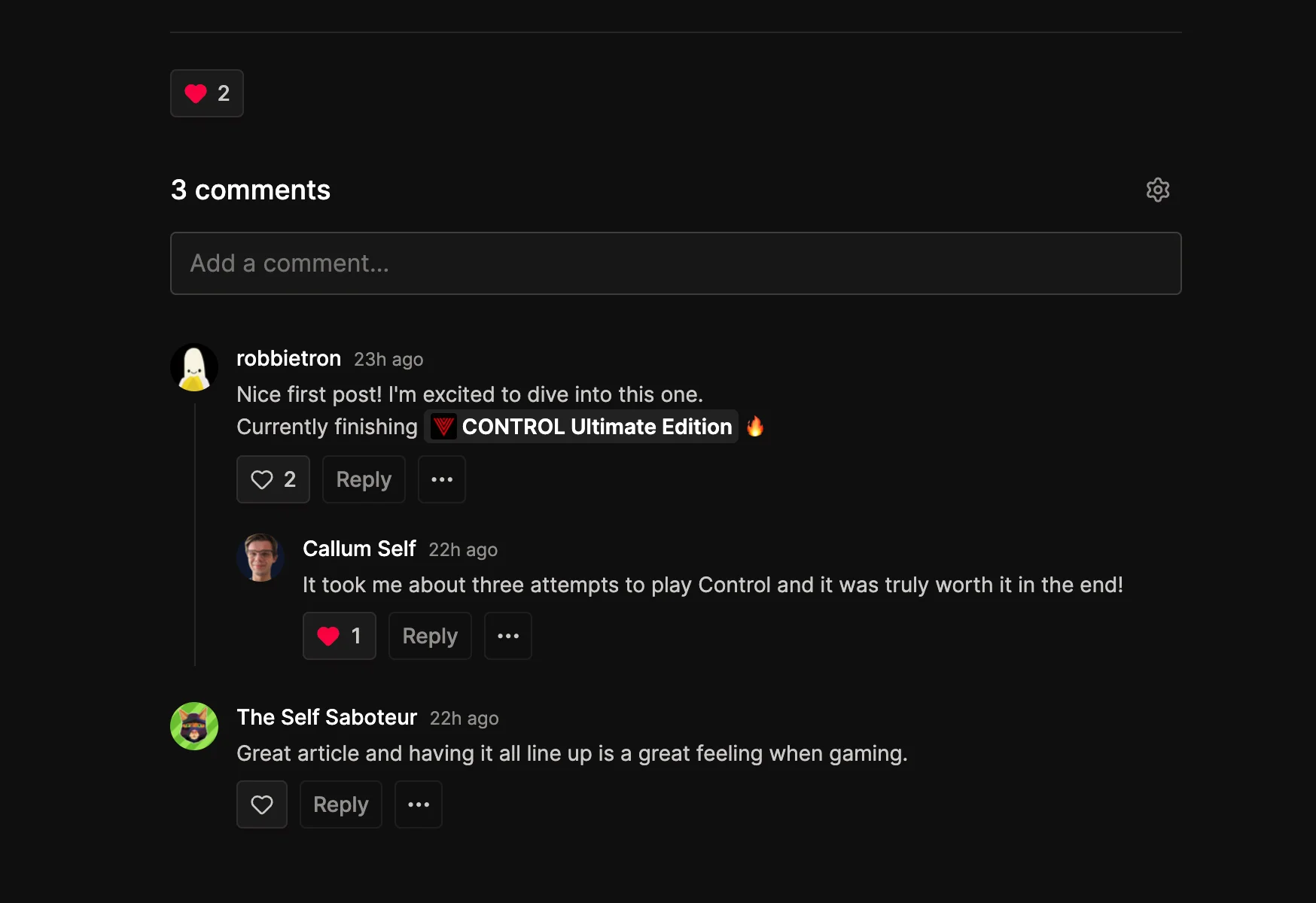
Select the heart to like a comment. To share a specific comment, open its three-dot Comment options menu and select Copy link.
Format your comment#
Comments support basic inline formatting: type **bold**, *italic*, ~~strikethrough~~, or surround text with backticks for inline code. Use [link text](https://example.com) for a labeled link, or paste a URL directly.
Wrap spoilers in ||spoiler text|| so readers can choose when to reveal them. You can also select text and use Ctrl+B for bold or Ctrl+I for italics (Cmd on Mac). Press Enter for a new line, or Ctrl+Enter (Cmd+Enter on Mac) to submit.
Edit or delete your comment#
Open Comment options on your own comment and select Edit. Editing is available for 15 minutes after you post it.
You can also select Delete and confirm. Deletion cannot be undone. Deleting a comment with replies leaves those replies visible under “This comment was deleted.”
Why can I not comment?#
Check that you are signed in to the account with your profile. If a post restricts comments to followers or supporters, you also need to meet that requirement. A locked thread accepts no new comments or replies, and a restricted post requires access before you can join its discussion.
Manage comment emails#
In Account settings, find Notifications. The comment email setting covers comments on your posts, replies to your comments, and mentions of you. Turn it off to stop those emails.
This setting is separate from publication subscriptions. See Managing subscriptions for publication updates and paid support.
Writing posts of your own? See Managing comments on your posts.