
Curators
Using the editor
Format stories and add games and media in the player.gg editor.
Editor basics#
Start with a title and a subheadline. Then write the body as you would in any text editor.
Use the toolbar to format text as bold, italic, or a spoiler. You can also add headings, bullet and numbered lists, links, images, and horizontal dividers. Select an existing block to edit, move, or remove it.
Mention games, curators, and publications#
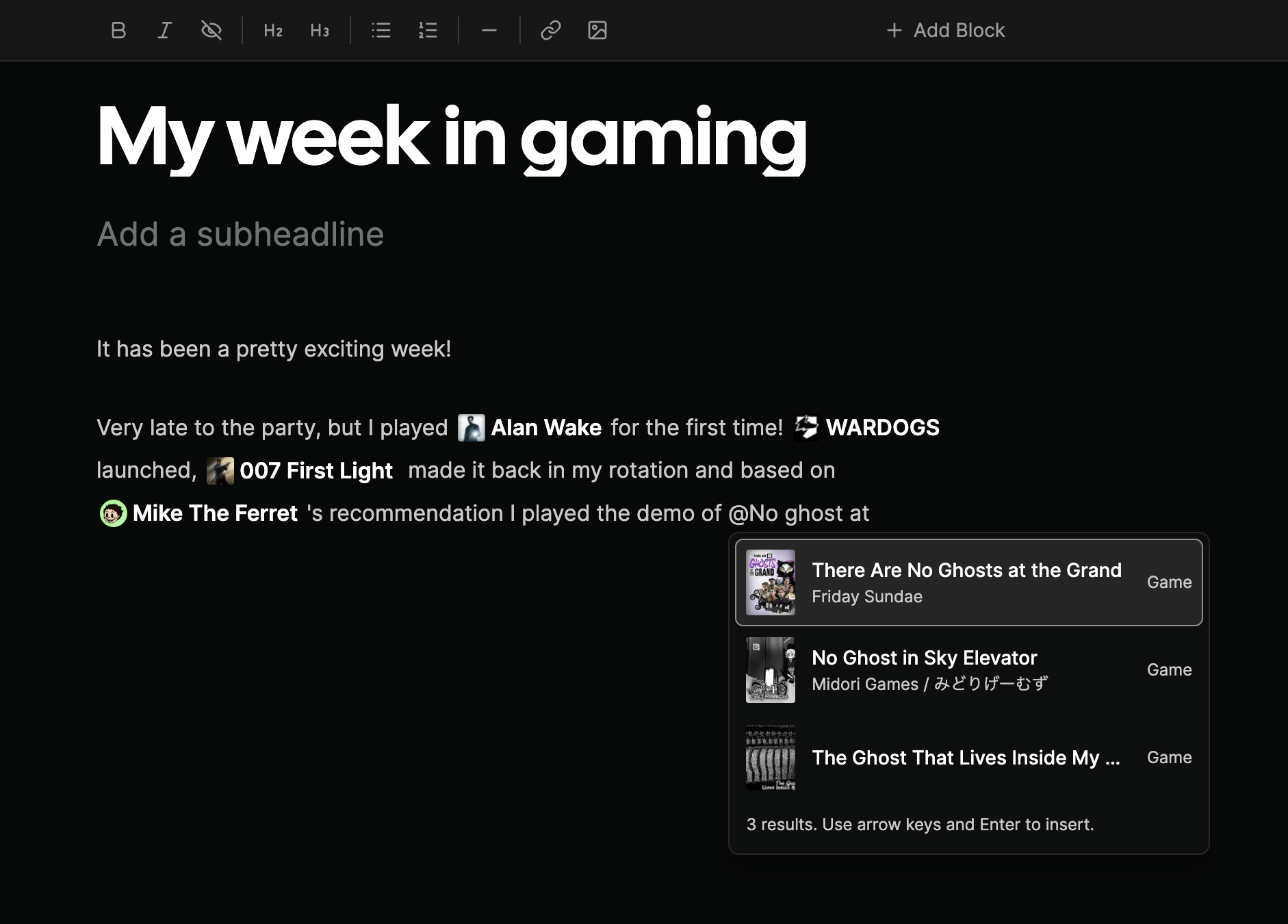
Type @ in the body of your post, then start typing the name of a game, curator, or publication. Select a result to insert a mention, or use the Up and Down arrow keys and press Enter. Press Escape to close the suggestions.
Mentions appear inline with your text and link to the game, curator profile, or publication. Use them for a quick game reference or a shout-out while keeping the sentence flowing.
Add rich content#
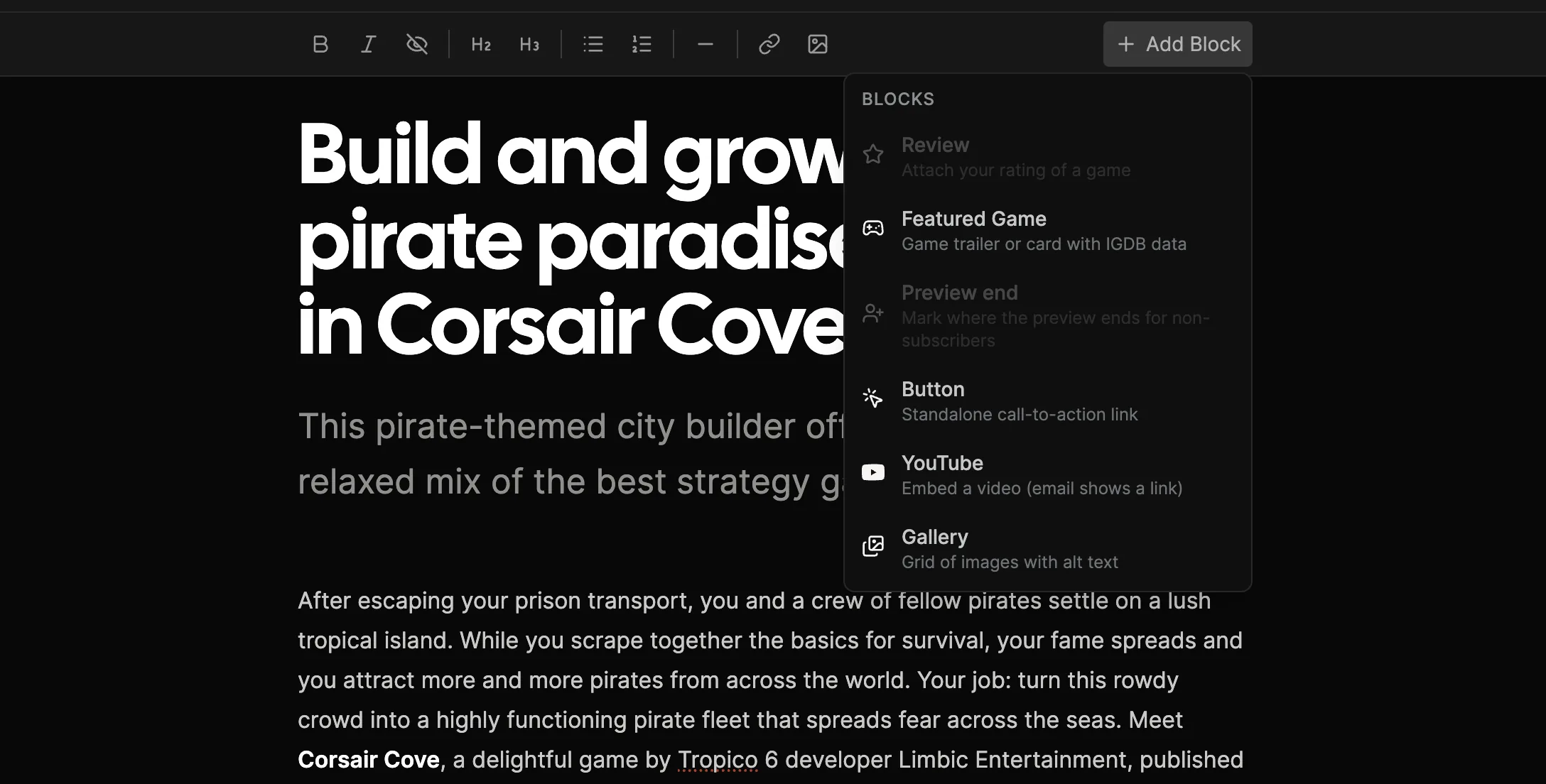
Select Add block wherever you want something richer than text:
- Review adds one of your game ratings to the post.
- Featured Game adds a game card or trailer using its player.gg game information.
- Button adds a clear call-to-action link.
- YouTube embeds a video. Newsletter emails show a link to the video.
- Gallery adds a grid of images with alt text.
Publications connected to a game may also have a Reward block for keys or other rewards.
Embed a game#
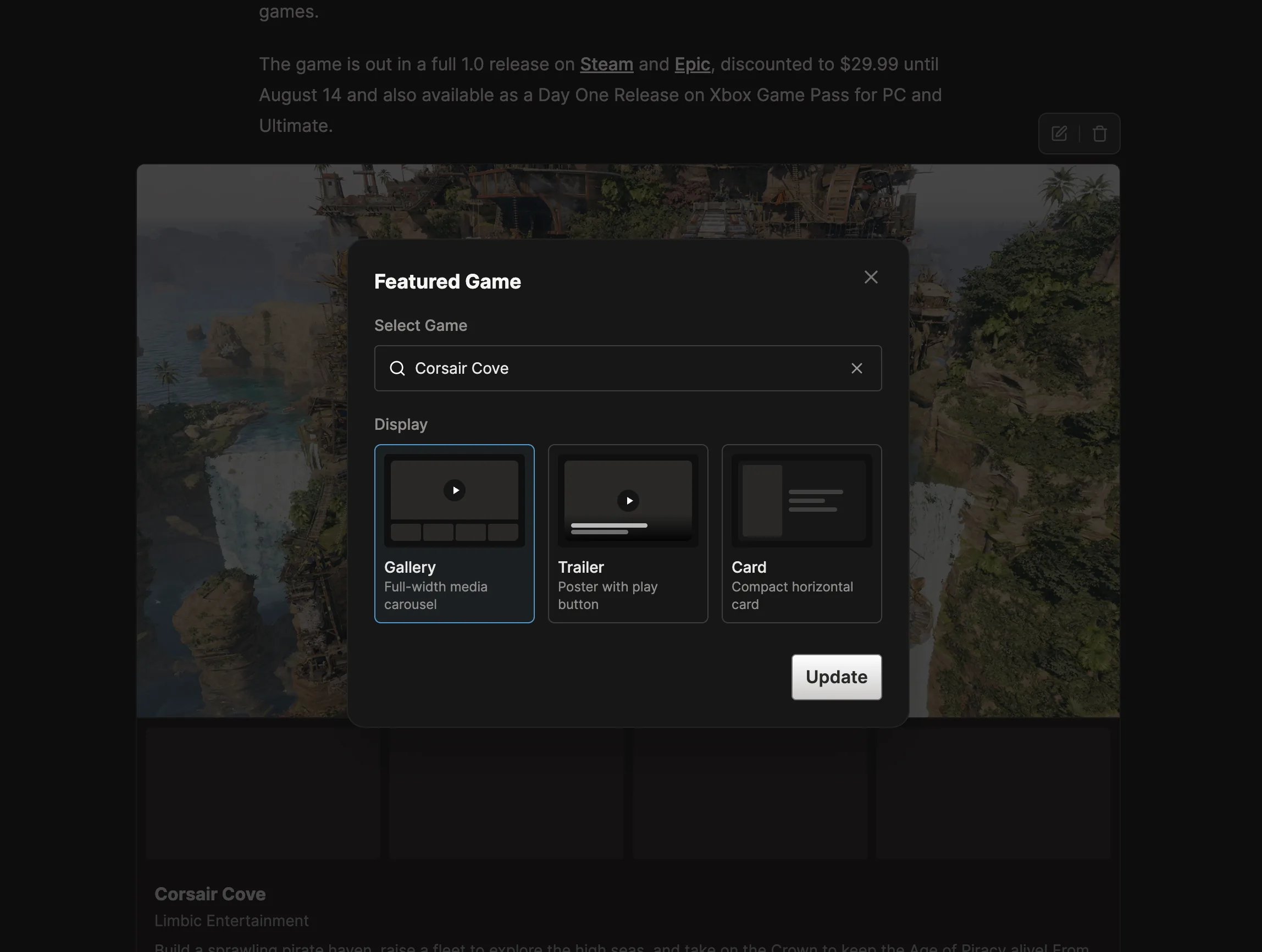
Select Add block, then Featured Game. Search for the game and choose how it should appear:
- Gallery shows a full-width carousel of game media.
- Trailer shows a large poster with a play button.
- Card adds a compact horizontal game card.
You can also paste the URL of a game’s player.gg page directly into the editor to embed it. Select the game block later if you want to change its layout or remove it.
Embed a link#
Paste a supported URL on its own empty line to add an interactive embed. Select the embed to open or remove it, or drag it to another place in the post.
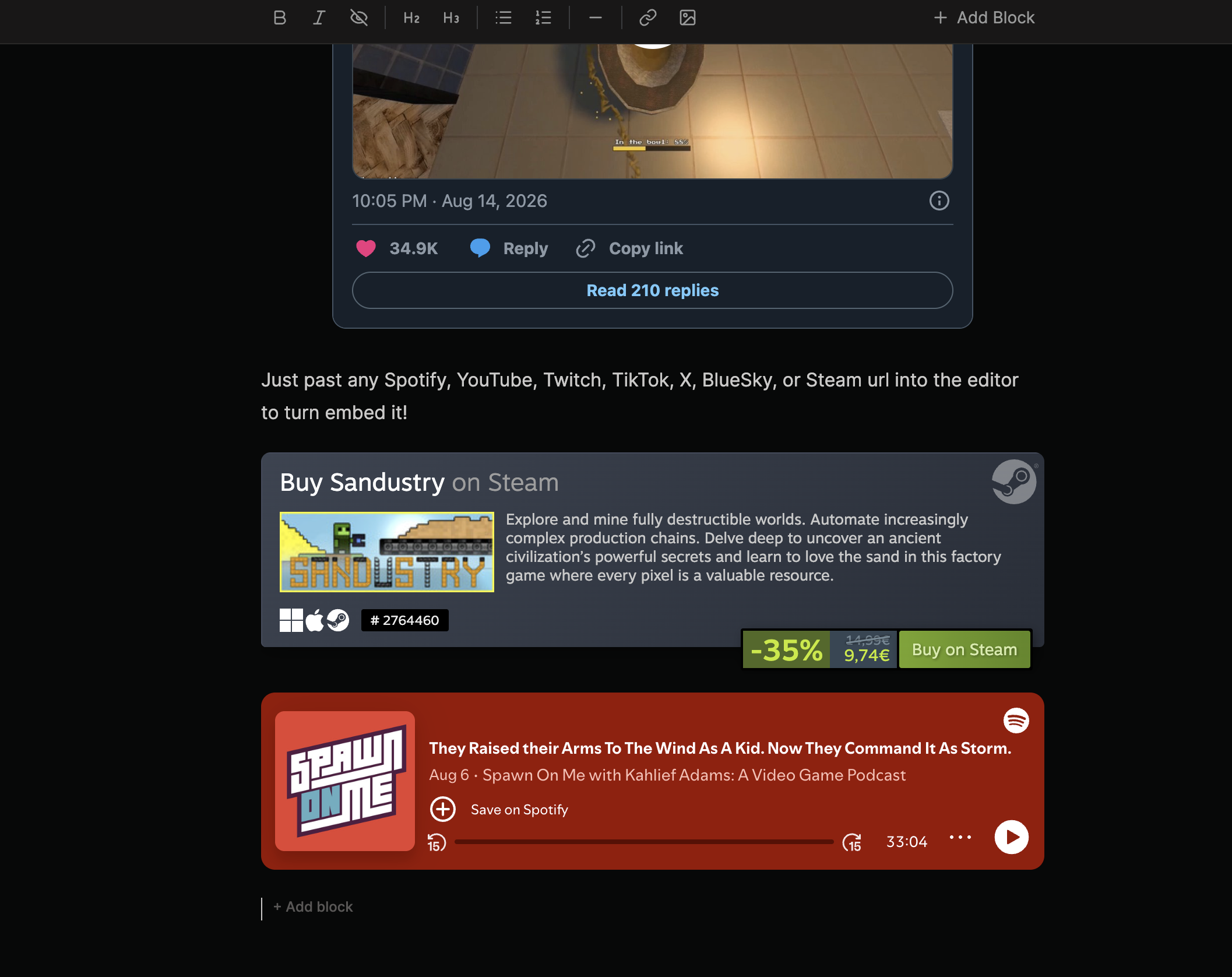
Supported providers and content:
- YouTube videos from
youtube.com,music.youtube.com, andyoutu.be. - Spotify tracks, episodes, albums, artists, shows, and playlists.
- X posts from
x.comandtwitter.com; usevxtwitter.comfor direct video embeds. - Bluesky posts from
bsky.app. - TikTok videos using the full
tiktok.com/@user/video/...URL. Short sharing URLs are not supported. - Twitch channels, videos, and clips.
- Steam games using their Steam Store app page.
Other public https:// URLs remain visible in the paragraph and receive a preview card underneath.
In email, embeds are shown as minimal, best-effort previews and may look different from the published post.
Add a subscriber or supporter divider#
A divider marks the exact point where a post stops being freely readable. Place it after the part you want everyone to preview; anything below it is reserved for the selected audience.
- Preview end asks readers to subscribe for free before they can continue.
- Paywall is available to Partner Publications with supporter subscriptions and reserves the rest for supporters.
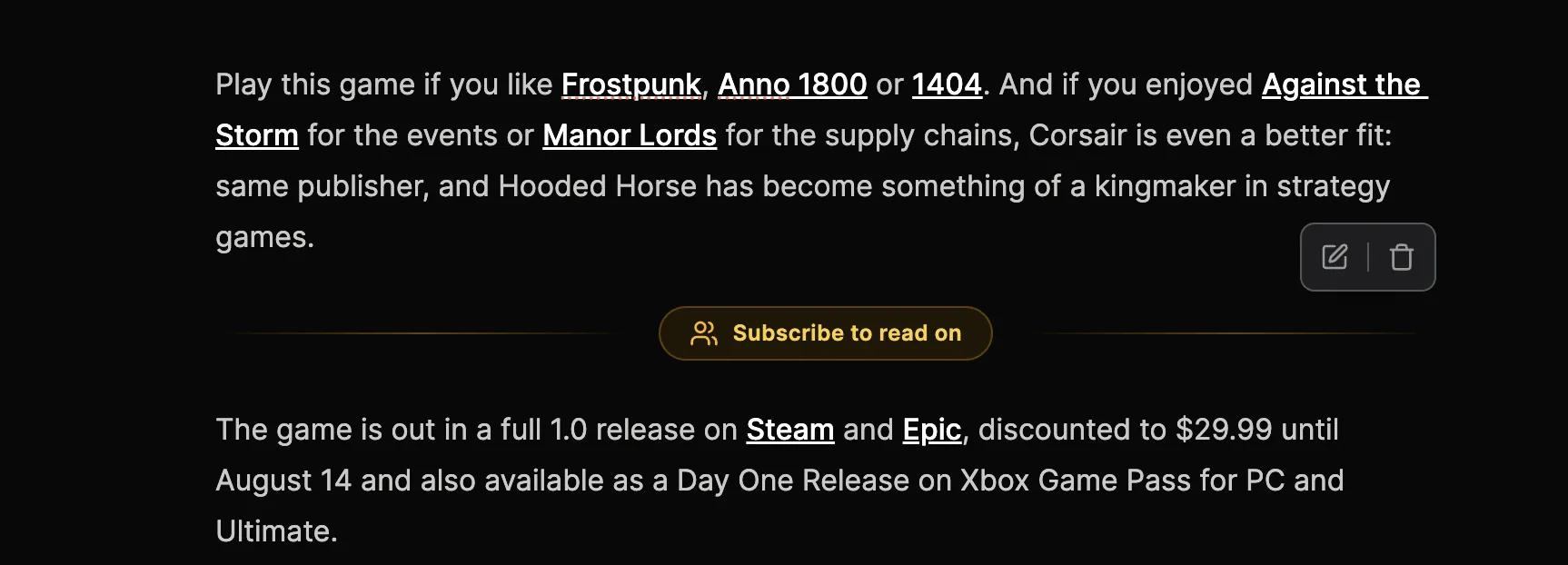
The editor still shows the complete post while you are writing. On the published post, readers without the required access see the divider and its subscribe prompt instead of the content below it. Select the divider’s edit button to change its message, or remove the divider to make the complete post readable again.
Only one review and one type of preview boundary can be added to a post.
Save and publish#
The editor keeps unsaved changes in your current browser and shows Saved in browser when a local copy exists.
Saving does not publish the post. After saving, you will see a preview where you can edit again, publish immediately, or schedule it. See Writing posts for the full publishing flow.